


At home
Free
On your home Wi‑Fi
- Your glasses: voice, the live conversation, Allow and Deny
- Your iPhone: chat, files and sessions
- Approvals on your iPhone's lock screen
- Speech turned into text on your Mac
Or open seeli.app on your Mac to download.
 Download for Mac
Works with RayNeo X3 Pro
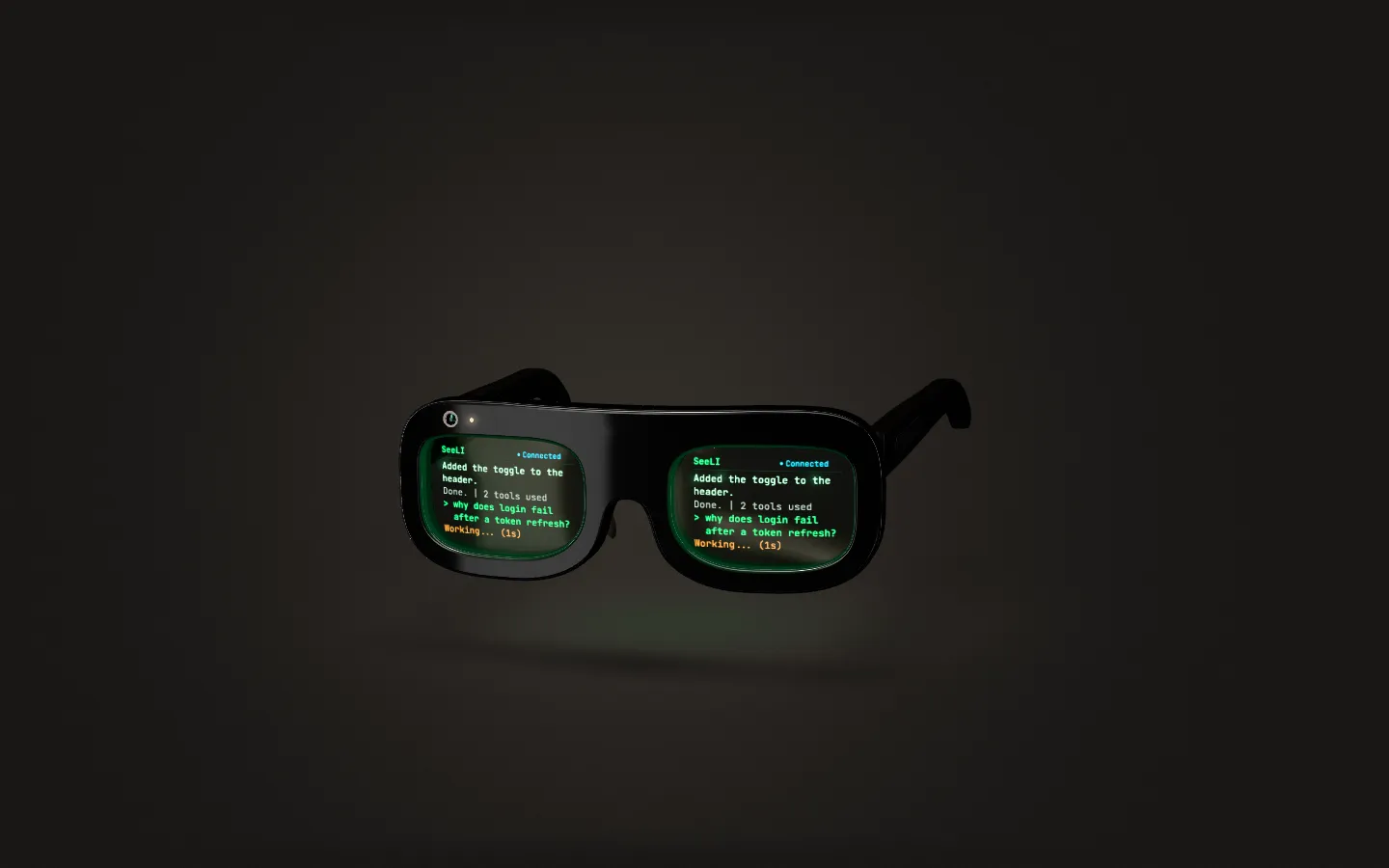
SeeLI puts Claude and Codex on the lens of your RayNeo X3 Pro. Tap to talk, watch every step, and allow or deny changes with a touch. The work happens on your own Mac.
Or open seeli.app on your Mac to download.
Free at home · Apple silicon · macOS 15 or later
The iPhone companion app is coming to the App Store.
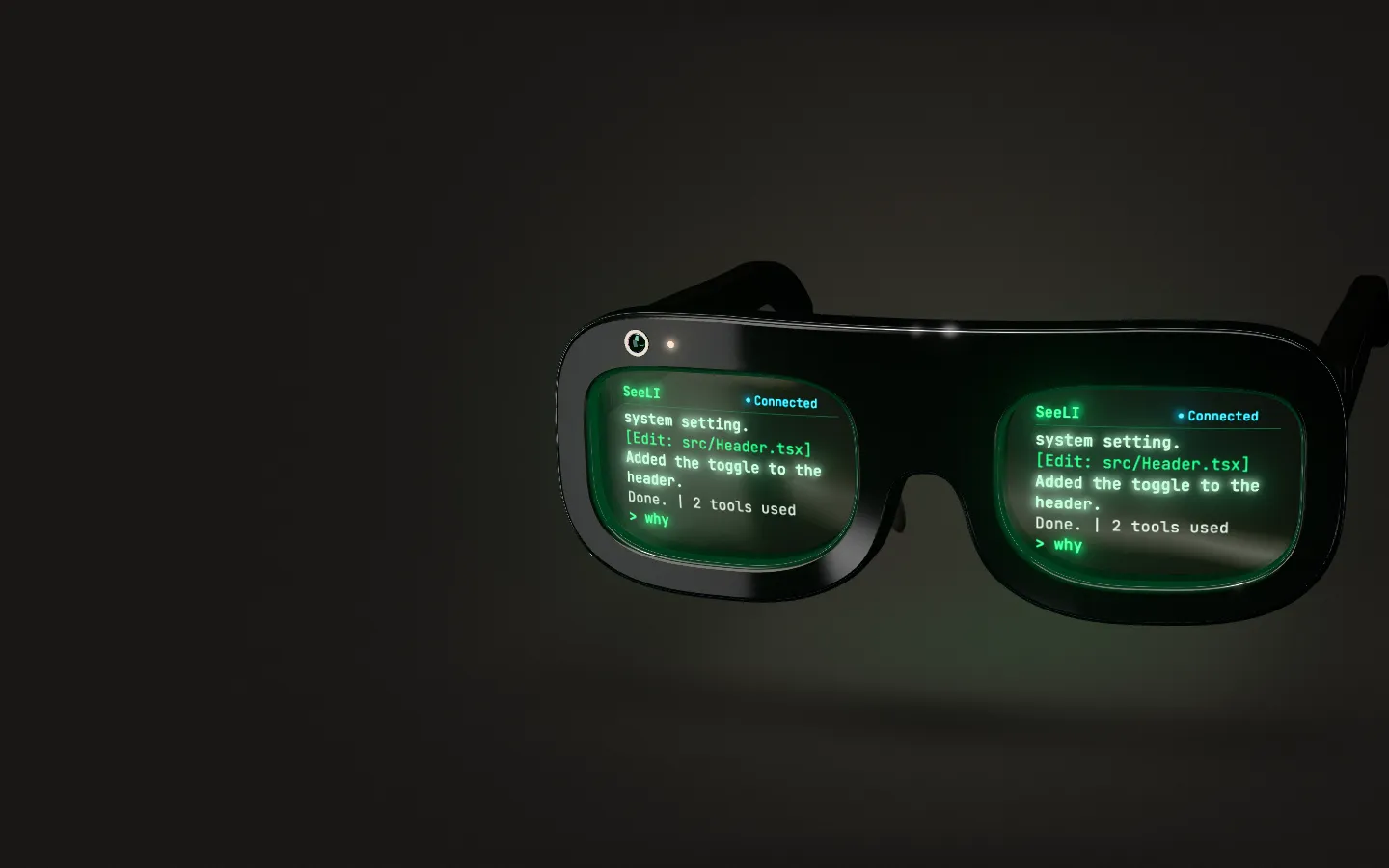
Illustration. Lens images simulated.
Beside this text, an illustration shows a pair of glasses with a coding conversation on the lenses: a spoken request appears in green, a reply streams in, and an Allow or Deny prompt appears.
Why glasses
A coding agent can work for a long stretch on its own. It still needs you for the decisions: a question, a yes, a no. SeeLI keeps the conversation in view, so you can get up, stretch, make dinner, and still answer when it asks.
Illustration. Lens images simulated.
Tap to talk
Tap the temple once and say what you want, for up to a minute. Tap again to send it, or slide back to cancel. A speech model on your Mac turns your words into text: no speech cloud, no extra account.
Illustration. Lens images simulated.
Approvals
Before the agent changes a file, the lens wakes and asks [ ALLOW THIS? ], with the request underneath. Allow comes preselected, so yes is one tap. To say no, slide down to Deny and tap.
Illustration. Lens images simulated.
On the lens
SeeLI shows the conversation as a terminal-style transcript. The X3 Pro lights up only the text and leaves the rest of the lens clear, so the lines float over the room instead of hiding it.
An example conversation on the lens, line by line:

On the temple
Five gestures cover talking, approving, stopping and changing settings.
Settings on the lens
Slide along the temple and the settings open right on the lens.
SeeLI opens when the glasses start up, reconnects as soon as they wake, and reopens the conversation you were in. New versions arrive from your Mac over Wi‑Fi. No cable needed.
SeeLI for iPhone · Free
The free companion app connects to the conversation already running on your Mac. Use it for the details: formatted code, edits shown as diffs, and your project's files.
Coming to the App Store · iOS 16.4 or later · No account, and nothing to buy in the app
Setup
It lives in your menu bar. The setup guide asks where your projects live, signs you in to your AI (with ChatGPT, or with your own OpenAI or Anthropic API key), and installs Apple's developer tools if your Mac needs them. It also offers to pair an iPhone; skip that step for now.
Connect your X3 Pro with the cable from the box and choose Set up my glasses. The first time, they ask whether to trust your Mac: put them on and choose Allow. In about a minute, SeeLI installs its glasses app and links them to your Mac over your home Wi‑Fi.
Say what you want built. From then on, the glasses update themselves from your Mac.
The download is about 400 MB. On first start, SeeLI downloads its voice models once, about 450 MB from Hugging Face. If your Mac needs Apple's developer tools, installing them can take an hour. Your glasses and Mac need to be on the same Wi‑Fi, with Answer my home network turned on in the menu bar. Setting up the glasses uses a small helper from Google (about 16 MB), downloaded only after you agree.
Ask first, by default
Every agent starts in Ask first mode. Reading your project never asks. Changing it always does, and a request you leave unanswered counts as a no after ten minutes.
Claude
Codex
More careful: from your Mac, iPhone or glasses.
More freedom: only on the Mac.
Privacy
SeeLI runs the agent on your Mac, and your Mac talks to Anthropic or OpenAI directly, under your own account. Your code, chats, voice and files never pass through us.
SeeLI also contacts a few services for downloads and updates, such as Hugging Face for the voice models. The privacy policy lists each one. Read the privacy policy
Pricing
On your home Wi‑Fi, SeeLI is free: the glasses app, the iPhone app and the Mac app. When you want your iPhone to reach your Mac from anywhere, add a license. You pay once.
Free
On your home Wi‑Fi
Or open seeli.app on your Mac to download.
$39paid once
Your iPhone reaches your Mac from anywhere
Checkout opens soon. Everything at home is free today.
The glasses connect over your home Wi‑Fi only. Networks that block direct connections, like some hotel and office Wi‑Fi, may not connect yet. Sold by Paddle, our merchant of record.
Your AI usage is billed by OpenAI or Anthropic, under your own sign-in or API key. SeeLI doesn't resell it.
Not supported yet: Windows, Linux, Intel Macs, Android phones and other glasses.
FAQ
Something else? Write to hello@seeli.app.
RayNeo X3 Pro. SeeLI is built for its display and its temple controls, and they're the only glasses it supports today.
No. The glasses reach your Mac over your home Wi‑Fi. Away from home, the iPhone app can reach your Mac with a license. Networks that block direct connections, like some hotel and office Wi‑Fi, may not connect yet.
Two agents: Claude, by Anthropic, and Codex, by OpenAI. Codex works with your ChatGPT sign-in or an OpenAI API key. Claude works with your own Anthropic API key. Usage is billed by Anthropic or OpenAI under your own account. SeeLI doesn't resell it.
In Ask first mode, the default, both agents read and search your project and search the web without asking. Claude also uses the MCP servers you've turned on. Both ask before they change a file, and Claude also asks before it runs any command. A request you leave unanswered counts as a no after ten minutes. More freedom is a setting on the Mac itself; from your glasses or iPhone, you can only make an agent more careful.
No. The agent runs on your Mac and talks to Anthropic or OpenAI directly. At home, your glasses and iPhone talk straight to your Mac. Away from home, our server only introduces your iPhone to your Mac; what they send each other is end‑to‑end encrypted, and we can't read it.
No. At home, the glasses and your Mac are all you need. The iPhone app adds formatted code and diffs, your project's files, approvals on the lock screen and, with a license, a way to reach your Mac from anywhere.
No. On your home Wi‑Fi, SeeLI costs nothing. Away-from-home access is $39, paid once, and covers up to 2 Macs. If it isn't for you, email hello@seeli.app within 14 days for a full refund.
A phone remote puts your agent on a screen you have to pick up. SeeLI puts it on your glasses, so a long run stays in view while you do something else, and yes is one tap on the temple. It runs Claude and Codex in one app, and your Mac turns your speech into text.
Download SeeLI for Mac, plug your glasses in once, and tap to talk.
Download for MacOr open seeli.app on your Mac to download.
Free at home · Apple silicon, macOS 15 or later · Works with RayNeo X3 Pro
Illustration. Lens images simulated.